Posts

Showing posts with the label visuals

How to multi color a shape in Keynote

Image
  I recorded this some weeks ago. Applying an advanced gradient filling to a shape in Keynote has its pros and cons, but for irregular shapes it might be very useful.

A word visuals: sometimes more is simply more

Image
A mantra of design is  Less is more  which does not preclude that more isn't more, but in fact this mantra is used to drive the use of less. This post is about that sometimes more is better than less. Let me explain, This title slide is with no doubt a lot So, following the above mentioned mantra, I tried to reduce the amount of ink by changing the background to a softer one: but then this happened:  I like the first one better. The feeling that it invokes is a more fun, sunnier, summery wave. The second one is … hollow. But here is another example in the opposite direction:   In this case less is indeed more. The morale of this exercise is to iterate and try at least one entirely different variant of an important element. Call it exploring the design space if you want.

Pro tip: Provide text of screenshots

Image
 Sometimes a slide is a screenshot, for example of a website. To help the audience, paste the url as text. If the slide is shared as a PowerPoint or Keynote file or a pdf file, people can easily copy the text and paste it. Here is an example of a presentation I created some weeks ago: The url as text covers the browse's url bar. In fact slide doesn't doesn't feel like a screenshot of a website, at least to me. And yes, I did that on purpose. A browser screenshot is just an example. If there is valuable text  that you know will be entered with the keyboard, paste the text as text. Your audience will thank you.

How to animate text hightlighting in Keynote

Image
 Following the previous posts on text highlighting and drop caps, this one is about animating highlighed text moving the hassle from animation synchonization to a "advanced" use of the color gradient.  What I want to achieve is to reveal the highlighted text as the text is read. Let's dive in: Advanced gradient fill If the Object List is not already open, do it  by navigating to the View  > Show Object List or press Option + Command + L. We are starting with a text field and 4 rectangles. The latter have all the same size and color. They have all also been aligned to the left. Now, rearrange them to this order. Make should that the b.'s have the same color of the background: Next, select the t.top shape and applied a advanced color fill with the same color of the t.bottom shape. Set the transparency of the left color to 0%: And set the transparency of the right color to 100%: Now add 2 new color "stops": One with should be a copy of left color and the oth...

How to highlight text in screenshots

Image
Before After Sometimes scientific presentations include screeshots and text is highlighted by drawing box around it and either filling it it blank or a semi transparent fill. In fact, yesterday I was just about to do that but then I decided to open Gimp and  apply some layering techniq ue . The results? For black text the natural option is the Addition Layer. For the blue text HSL Color works best. Here is a quick run down. 1. File > Create > From Clipboard 2. If the layers dialog isn't showing press Ctrl + L  or in Mac Command + L.  3. Create a new transparent layer Shift + Ctrl + N or in Mac Shift + Command + N. 4. If the toolbox dialog isn't showing press Ctrl +  B and click on the rectangular select tool or press R. 5. Make sure the newly create layer is selected. In it draw a box over the text you want to highlight. You don't  need to be so precise. 6. Open the color picker dialog and select the highligh color. After you are happy with your selectio...

A word on visuals: An alternative to the bullseye diagram

Image
A particular type of diagram that I often have problem with is the bullseye diagram. Bullseye diagram The problem is text placement. Some people, including me, opt to place the text outside the diagram and connect to it using lines or arrows. A bullseye diagram conveys the idea of a core and its subsequent layers. It is a hierarchy diagram with the center been the most important part, the core if you will. A slide that I didn't show in the last post was a simplification of diagram I would called a Earth's Layers diagram: Source: Wikimedia Commons In essence, it is the bullseye diagram in 3D. I wanted to visualise the following layered hierarchy 1. Principles 2. Methodologies 3. Tools. At the core are the principles, followed by the methodologies, and tools as the final layer. My plan was to place the text on x-y plane. I ended up not using the earth's layers diagram because I couldn't modified the above diagram to have only three layers. So  instead I c...

Visual Examples: Principles and Smells

Image
Yeah, I'm back.  These are sample visuals for a coming presentation on some basics of software development target for a none technical audience. Commons The background is a linear gradient from #DFDFDF to #FFFFFF with no transparency, and except for the images, the only colors are orange ( #EB9D3F ) and blue ( #3B85A7 ). The font is Open Sans, which I like more and more. As with as Roboto it is was commissioned by Google and is free. Images The images are from Wikimedia Commons, some of them are either Feature Images of Quality Images. I had to desaturate them in order to gain control back of the overall aesthetics. #1 Principles Principles slide with layout number 1 #2 Smells Smells refer to problems caused when one doesn't follow the principles.  I purposely changed the layout to reflect this. Smells slide with layout number 2 As an exercise I did the smells slide with the principles layout number 1… Smells slide redone with layout number 1...

How to crop images with circles in Keynote

Image
Here is a way to deal with images that come in different sizes and/or orientations: mask them with circles.  Here is what I mean You have probably already seen this with Google and Apple productions. Circles are fun, dynamic, harmonious, and they are also points. Now, there is a whole visual grammar behind points, but that's not the topic of this post. Let's do the before-after thing. Consider this fake slide By the way, also Featured pictures from Wiki Commons. The images are very good, but we can take them to the next level.  Their sizes are around 700px, so I'll mask them with circles with a diameter of 300px. This is the result Certainly better, but how did I do it? Most Slideware packages allow you to crop an image with a shape .  Google it and you'll get the technical know-how. I'll demo with Keynote 6.   Select a Circle: Insert > Shape > Cicle. Make it the size that you want.  We'll rescale all images at the end, so don...

A word on visuals: Transitions

Transitions are problematic. Most presentation software come with more transitions than wanted. The people at Duarte already covered with in a series of videos called The Trouble with Transitions . The best transitions are the simple ones and are best used when used scarcely. Here is a small collection. I chose these because they are similar to small set simple cuts editors used when putting a film together. Dissolve Note that a slide can dissolve to black or white. The technical term is fade-out. Fading out to black is also known as black-out, and similarly fading out to white is known as white-out. Using a combination of fading out and in, might help the speak force a well deserved pause: This "white pause" is appropriate when the speaker ant to signal that the next topic is weakly coupled to the previous one. Move-in This might also be known as cover. Read below to see why… Push If the whote pause signaled weakly coupling, the push transi...

A word on visuals: Redrawing a diagram

Image
Scientist and engineers need diagrams to express ideas, and so they make it into a presentation's visual stack. Some caution is necessary when inserting diagrams into a presentation's visual stack.  Some could come in the form of a scanned document, some could come from a cropped pdf, or a image file. Biology Professor Zen Faulkes  has also written about the topic of redrawing here . Here is an example of a diagram that needs to be redrawn: If I would have inserted this diagram as it is there would  have been several problems, including Not all text would have been legible.  The diagram would have included information the audience doesn't need. The diagram might have looked pixelated. In other words, I would have lost control over it. I can recover the control by redrawing the diagram. Nowadays it is fairly easy to do this. High quality SVG maps are released under public domain or Commons Creative licenses. Plus, open source for manipulating vector graphic...

How to improve the text on a slide

Image
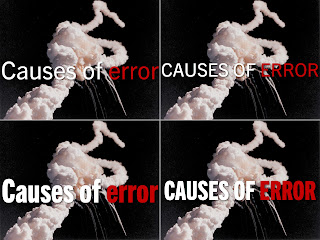
On this post I show to improve the text by using compress fonts and all caps text. I also show 2 variants to place white text over a white background. I obviously like to doing slides. So after an in intense last weeks of doing non-photographic ones, I was in the mood today to experiment. Some context, I was watching the New York Times' dining section videos, which have a strong typography and after some minutes I fired up Keynote and started to play with serif fonts It didn't take long to open Wiki-Media's Picture Of The Day (POTD) collection, where I found a picture of the 1986 Challenger disaster. The picture serves as an analogy of things that can go wrong. I cropped it to an aspect ratio of 4:3, scale it to 1024 × 768 so inserted it into a slide. That makes a full-bleed slide, but I also wanted to add some text: Causes of error. Here are 4 variants of the same image and same text: I like the bottom right better.  Although all 4 use the same Trade Gothic typefa...

How to make your own Keynote template

Image
You probably know I hate presentation templates. However in last couple of months I have found myself not only using them, but creating them, I have been blown away with what  I have been able to achieve. There is a caveat, my own templates have only one master slide, and it is a blank one. That is all you actually need from a template: one single blank master slide. There are 3 things that blank slide has. A font family, like Roboto. A background color. A color palette. Here is an example: I like Roboto for 3 reasons: It is free, it is professional, and it has enough styles and glyphs. I have been starting to use Keynote's Color Palette just a few week and it has helped me speed out my work and keep my work consistent.  Mini-tutorial 1. Getting down to only 1 master Slide 1.  Let's start from with a default template, say "White".  2. Click on Show Master Slides. 3. I have added the Rule of Thirds to my white template for better placem...